 Download App
 Track Order
 Help Center

How to Check if iPhone Battery Is Boosted or Not
Introduction: That 100% Battery Health Might Be Lying to You
You just bought a second-hand or refurbished iPhone. You open Settings, tap Battery Health, and there it is — a shiny 100% battery health. Relief washes over you. “Great deal,” you think.
But two months later, your phone is dying by 3 PM. It drops from 40% to 5% in minutes. Something feels wrong.
Welcome to one of the most common tricks in the used-phone market in India: boosted battery health. Sellers (and sometimes even repair shops) use software tools to make an old, worn-out battery show a fake percentage — while the real battery inside is tired, damaged, or unofficially swapped.
This guide will teach you exactly how to check if iPhone battery is boosted, using only your phone’s own settings — no apps, no technician, no guesswork. By the end, you’ll know how to spot a fake battery health reading in under 5 minutes, before you regret a purchase.
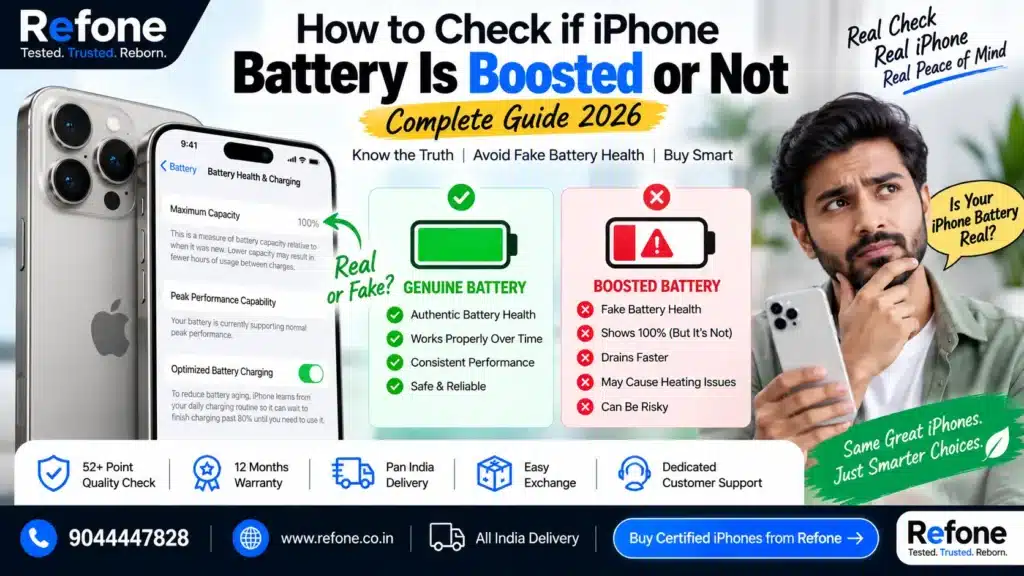
This is especially important if you’re buying a refurbished iPhone, because a genuinely good refurbished phone (like the ones properly graded and battery-tested by trusted sellers such as Refone) should never need this kind of digging — the transparency is already built in.
Also Read – How to Check Battery Health Before Buying a Refurbished iPhone (2026 Guide)
Why Does This Happen? The Real Problem
Here’s the honest truth: Apple’s battery health percentage is meant to tell you how much charge capacity your battery has retained compared to when it was new. A 100% reading should mean the battery is basically brand new.
But battery health data is stored in a small chip inside the battery itself. Using specific hardware/software tools, some technicians can reset or manipulate this data, making an old battery report 95–100% health even though its real, physical condition is much worse.
This is called a boosted battery — and it’s one of the most frequent complaints from people who buy used or “refurbished” iPhones from unverified local sellers, OLX, or random Instagram resellers.
If you’re about to spend your hard-earned money on a used iPhone, you deserve to know the truth about what’s inside it — not a manipulated number on a screen.
Buy Certified Refurbished iPhone
Super Quality iPhones at Smarter Prices
Quick Answer (For Google & AI Search)
How can I check if my iPhone battery is boosted? Go to Settings → Battery → Battery Health & Charging. Check the “Maximum Capacity” percentage, then compare it with the phone’s Cycle Count. If the battery shows 100% health but the phone has a high cycle count, poor real-life battery performance, or an “Unknown Part” warning under Settings → General → About → Parts and Service History, the battery health has likely been boosted or the battery is not genuine.
This is the fastest, most reliable answer — and the rest of this guide breaks down every step in detail.
Step 1: Check iPhone Battery Health the Right Way
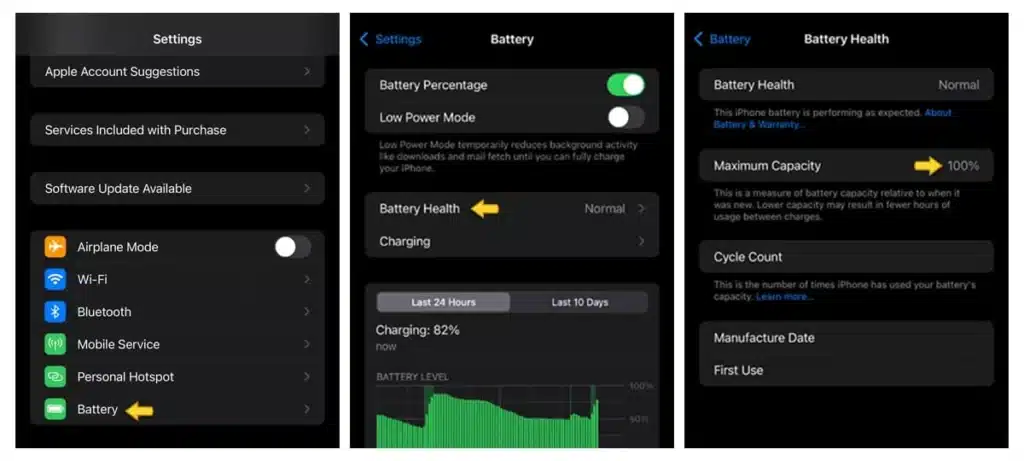
This is the foundation of any iPhone battery health check. Here’s how to do it:
- Open Settings
- Tap Battery
- Tap Battery Health & Charging
- Look at Maximum Capacity
If it shows something like 100%, 99%, or even 103% (yes, this can happen with a manipulated chip), don’t celebrate yet. A genuinely healthy battery on a well-used phone rarely stays at 100% — batteries degrade naturally with time and charge cycles.
Also Read – Is 85% Battery Health Good for iPhone? The Honest Answer Indian Buyers Need
What a Normal Battery Health Should Look Like
| Phone Age / Usage | Expected Battery Health (Genuine) |
| Brand new (0–3 months) | 98–100% |
| 6–12 months of regular use | 92–98% |
| 1–2 years of regular use | 85–92% |
| 2+ years of heavy use | 75–85% |
If a phone is 2+ years old but still shows 100%, that’s your first red flag for a boosted battery health reading.
Step 2: Check “Parts and Service History” (The Real Truth Detector)
This is the single most powerful built-in tool Apple gives you, and most people don’t even know it exists.
- Open Settings
- Tap General
- Tap About
- Scroll down to Parts and Service History
Here, iPhone tells you exactly what it thinks about the battery (and other parts like the display and camera) inside your phone. You’ll see one of these three messages:
Battery Status Meanings
| Status Shown | What It Means |
| Genuine Apple Part | The battery is an original Apple battery, properly paired with the phone’s software |
| Unknown Part | The phone cannot verify the battery — it may be a replacement done outside Apple’s authorized system, or the pairing process wasn’t completed |
| Service (battery icon warning) | The battery has clearly been replaced, and Apple has flagged it for a service message |
If you see “iPhone battery unknown part”, this doesn’t always mean the battery is fake or bad — but it does mean it wasn’t installed through Apple’s official calibration process. Combined with a suspiciously perfect battery health percentage, this is a strong sign of tampering.
This single screen answers several of the most searched questions people type into Google and voice assistants:
- “What does Unknown Battery mean on an iPhone?”
- “How do I check Parts and Service History?”
- “How do I know if an iPhone battery has been replaced?”
Also Read – Refurbished iPhone Hidden Problems Buyers Ignore (2026)
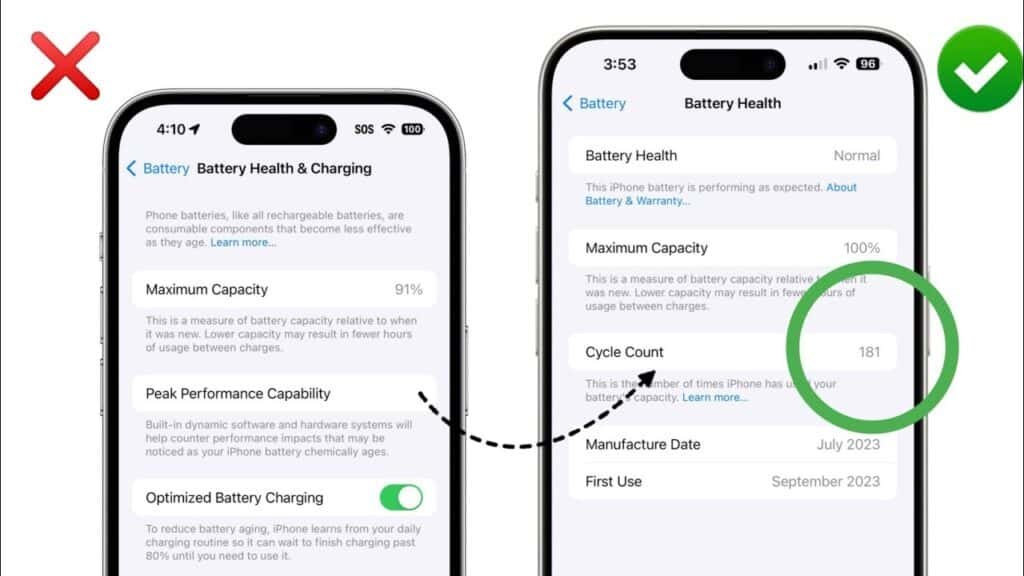
Step 3: Check the Battery Cycle Count
A battery cycle is completed every time you use 100% of your battery’s capacity — whether that’s one full charge in a day, or several partial charges adding up to 100%.
Apple doesn’t show cycle count directly in Settings on most iPhone models (only certain models and some diagnostic tools reveal it). But here’s how you can estimate or check it:
- Use Apple’s official diagnostics (available at authorized Apple Service Centers) — ask them to check the cycle count for you
- Some trusted refurbishers and diagnostic tools display this number as part of a full device report
- Compare the cycle count with the phone’s claimed age
Rough Cycle Count Guide
| Cycle Count | What It Usually Means |
| 0–200 cycles | Very lightly used, likely under 6 months old |
| 200–500 cycles | Normal usage over 1 year |
| 500–800 cycles | Heavy usage, 1.5–2+ years |
| 1000+ cycles | Battery is likely due for replacement soon |
Apple officially states that its batteries are designed to retain up to 80% of their original capacity at 1000 complete charge cycles under normal conditions. If a phone has crossed this range but still shows 100% battery health, that mismatch is a major sign of a boosted iPhone battery.
Step 4: Do a Real-Life Performance Test
Numbers on a screen can be manipulated. Real-world performance is much harder to fake.
Try this simple test:
- Charge the phone to 100%
- Use it normally (browsing, calls, camera) for 2–3 hours
- Watch how fast the percentage drops
Warning signs of a boosted or fake battery health:
- Battery drops suddenly from 30% to 5% without warning
- Phone shuts down unexpectedly even when battery shows charge remaining
- Battery drains much faster than the “health” percentage suggests it should
- Phone gets unusually hot during normal use or light charging
- Battery percentage jumps or behaves erratically (like going from 40% to 60% without charging)
If you experience any of these while the Battery Health screen still shows a high number, this is one of the clearest practical answers to “how to detect boosted battery health.”
Real vs Boosted Battery: Side-by-Side Comparison
| Factor | Genuine, Healthy Battery | Boosted / Fake Battery Health |
| Battery Health % | Matches phone’s age and usage | Unusually high (95–100%) regardless of age |
| Parts and Service History | Shows “Genuine Apple Part” | Often shows “Unknown Part” or missing info |
| Real-life battery drain | Gradual, predictable | Sudden drops, random behaviour |
| Cycle count vs health % | Logically matched | Mismatched (high cycles, but “perfect” health) |
| Heat during use/charging | Normal warmth | Overheats quickly |
| Charging speed | Consistent | Inconsistent, slow, or erratic |
| Seller transparency | Shows proof, reports, warranty | Avoids showing detailed diagnostics |
This table alone answers most of the comparison-style questions people ask AI tools like ChatGPT, Gemini, and Perplexity when researching how to check if iPhone battery is original.
How Do Sellers Actually Boost iPhone Battery Health? (So You Know What to Watch For)
Understanding the trick helps you spot it faster. Here’s what typically happens:
- Software resetting tools: Certain third-party tools can reset the battery’s internal “cycle memory” and force it to report a higher health percentage than reality.
- Chip reprogramming: Some local repair shops reprogram the small chip inside the battery to falsely report near-100% capacity.
- Screen manipulation apps: Rare, but some scammers use jailbreak-based tricks to override what Settings displays (this usually shows other signs of instability too).
- Selling replaced batteries as “original”: A phone gets a cheap, non-genuine battery, but the seller doesn’t mention the replacement, hoping you won’t check Parts and Service History.
This is exactly why so many buyers now specifically search “how do sellers boost iPhone battery health” — because this practice is common enough that awareness has become necessary before buying any used device.
Checklist: What to Check Before Buying a Second-Hand or Refurbished iPhone
Before you hand over your money, run through this quick checklist. It directly answers “What should I check before buying a second hand iPhone.”
- Battery Health % (Settings → Battery → Battery Health & Charging)
- Parts and Service History for battery, screen, and camera (Settings → General → About)
- IMEI number matches the box/invoice
- iCloud lock is removed (Find My iPhone off)
- Real-life battery drain test for at least 2–3 hours
- Physical inspection — screen, camera, buttons, charging port
- Ask for original invoice or proof of purchase
- Ask the seller directly: “Has this battery ever been replaced?”
- Prefer sellers who offer a warranty and return policy
If a seller refuses to let you check any of these, or gets defensive when you ask about an iPhone battery authenticity check, treat that as a warning sign.
What About Buying From a Refurbished Phone Brand Instead?
Here’s an honest, practical point: doing all these checks yourself is smart — but it’s also work, and it still involves risk if you’re buying from an unknown individual seller.
This is exactly the gap that trusted refurbished phone brands are meant to fill.
At Refone, every refurbished iPhone goes through a multi-point battery and hardware testing process before it’s listed for sale. That means:
- Battery health is tested and disclosed honestly — not hidden or inflated
- Devices with genuine batteries are clearly labelled
- You get a warranty period, so you’re not left stranded if something’s wrong
- No guessing games with Parts and Service History — the grading is transparent from day one
If you’ve read this whole guide because you’re nervous about getting scammed, that nervousness is valid — the used phone market has enough bad actors to justify caution. But it also means you don’t have to gamble every time. Buying from a refurbisher that actually stands behind its battery grading removes most of this risk before you even open the box.
Statistics & Real-World Insight
Battery health concerns aren’t a small niche worry — they’re one of the top reasons buyers hesitate before purchasing a used iPhone in India. Apple itself designed the Battery Health feature (introduced in iOS 11.3) specifically because so many users were experiencing unexpected shutdowns from aging batteries, and wanted a transparent way to check condition. Apple’s official guidance confirms that batteries are rated to retain a majority of their original capacity for hundreds of charge cycles, which is why any battery claiming “100% health” on an older, heavily-used phone deserves a closer look rather than blind trust.
In practical terms, most experienced refurbishers and repair technicians will tell you the same thing: the Battery Health percentage should always be cross-checked against real usage signs — cycle count, age, and day-to-day performance — because a single number on a screen was never designed to be tamper-proof.

Frequently Asked Questions
Q1. How can I check if my iPhone battery is boosted?
Check Settings → Battery → Battery Health & Charging for the percentage, then check Settings → General → About → Parts and Service History. If the health percentage seems too high for the phone’s age, or the part is marked “Unknown,” the battery health may be boosted.
Q2. Does 100% battery health mean the battery is original?
Not always. A genuine battery on a fairly new phone often shows close to 100%. But on an older, heavily used phone, a 100% reading is unusual and could point to a manipulated or boosted reading rather than an original battery.
Q3. How do I know if an iPhone battery has been replaced?
Go to Settings → General → About → Parts and Service History. If it shows “Service” or the battery section doesn’t say “Genuine Apple Part,” the battery has very likely been replaced.
Q4. What does “Unknown Battery” mean?
It means your iPhone cannot verify that the battery is a genuine, properly paired Apple component. This usually happens when a battery is replaced outside Apple’s authorized repair process.
Q5. How do I check Parts and Service History?
Open Settings, tap General, tap About, and scroll down to “Parts and Service History.” This section lists whether your battery, screen, and camera are genuine, unknown, or serviced parts.
Q6. Is 100 percent battery health always genuine?
No. While a genuinely new battery can show 100%, this number can also be artificially set through certain software tools. Always cross-check it against the phone’s age, cycle count, and real-world performance.
Q7. Can I check an iPhone battery without opening the phone?
Yes. Everything explained in this guide — battery health, parts and service history — can be checked directly through the iPhone’s own Settings app, with no need to open the device physically.
Q8. How do I check the battery of a refurbished iPhone?
Follow the same steps: check Battery Health & Charging, check Parts and Service History, and do a real-life battery drain test. If buying from a refurbisher like Refone, also ask for their battery grading report.
Q9. How can I check battery health before buying a used iPhone?
Ask the seller to unlock the phone and check Settings → Battery → Battery Health & Charging together, along with Parts and Service History, before making payment.
Q10. How do I check the iPhone battery cycle count?
Apple doesn’t show this directly to regular users in Settings on most models. Authorized service centers and trusted refurbishers can check this through diagnostic tools during a full device inspection.
Q11. iPhone battery boosted hai ya nahi, kaise pata karein?
Settings mein jaake Battery → Battery Health & Charging check karo. Agar percentage bahut zyada high lag raha hai phone ki age ke hisaab se, ya Parts and Service History mein “Unknown Part” dikh raha hai, toh battery boosted ho sakti hai.
Q12. iPhone ki battery original hai ya nahi, kaise check karein?
Settings → General → About → Parts and Service History mein jaake dekho. Agar wahan “Genuine Apple Part” likha hai, toh battery original hai. Agar “Unknown” ya “Service” likha hai, toh battery replace ho chuki hai.
Q13. Second hand iPhone lene se pehle battery kaise check karein?
Battery Health percentage dekho, Parts and Service History check karo, aur phone ko 2-3 ghante use karke dekho ki battery kitni jaldi drain ho rahi hai. Yeh sab Settings app mein hi ho jata hai.
Q14. iPhone battery replace hui hai ya nahi, kaise pata chale?
Settings → General → About mein “Parts and Service History” section check karein. Yahan battery replacement ki poori jaankari mil jaati hai.
Q15. 100% battery health ka matlab battery genuine hai?
Zaroori nahi. Purane phone mein agar battery health 100% dikha rahi hai, toh yeh suspicious hai. Nayi phone mein 100% normal hota hai, lekin heavy use wali purani phone mein nahi.
Conclusion: Don’t Let a Fake Number Decide Your Purchase
A battery health percentage should give you peace of mind — not false confidence. Now that you know exactly how to check if iPhone battery is boosted, you have the tools to protect yourself from a common but avoidable mistake.
To recap the fastest way to verify:
- Check Battery Health & Charging percentage
- Check Parts and Service History for genuine vs unknown parts
- Match it against the phone’s real age and usage
- Test real-life battery drain for a few hours
- Ask the seller direct, specific questions
If you’d rather skip the detective work altogether, choose a refurbisher that already does this verification for you, honestly and transparently.
Ready to Buy a Genuinely Tested Refurbished iPhone?
At Refone, every iPhone goes through a strict battery and hardware check before it reaches you — no boosted numbers, no hidden “Unknown Parts,” just honest grading and a warranty you can rely on.
👉 Browse Refone’s certified refurbished iPhones today and buy with confidence, not doubt.
Your money deserves transparency. Your next iPhone should come with the truth about its battery — not a manipulated percentage.
Leave a Reply
Your email address will not be published. Required fields are marked *