 Download App
 Track Order
 Help Center

iPhone Slow After iOS 26 Update? 12 Settings to Make Your iPhone Fast Again (2026)
You updated your iPhone. You expected new features. Instead, you got lag.
Apps open slower. The keyboard stutters. Your battery drops fast, and the phone feels warm in your hand for no reason.
If this sounds familiar, you are not alone. Every year, right after Apple releases a new iOS version, search interest in “iPhone slow after update” spikes across India and the world. It happened with iOS 17. It happened with iOS 18. And now it’s happening again with iOS 26.
Here’s the good news: in most cases, your iPhone is not broken. It’s just adjusting. And with the right settings, you can fix the slowdown yourself — today, without visiting a service center and without losing your photos or data.
This guide, backed by real troubleshooting steps and tested settings, walks you through exactly why your iPhone is slow after the iOS 26 update and gives you 12 practical fixes to make it fast again.
Why Is My iPhone Slow After iOS 26? (Quick Answer)
Your iPhone is slow after iOS 26 mainly because of background system indexing, cache rebuilding, battery health strain, storage overload, and background apps competing for processing power right after a major software update. This slowdown is usually temporary and settles down within 24 to 48 hours as the system finishes its background tasks — but if it continues, specific settings changes can fix it.
Let’s break this down properly, because understanding the “why” helps you pick the right fix.
Why Did My iPhone Become Slow After iOS 26? (The Real Reasons)
A big software update is not just a simple file copy. It rewrites system files, rebuilds your Spotlight Search index, refreshes app data, and reorganizes storage in the background. Here is what’s actually happening on your device.
1. Background System Indexing
After any major iOS update, your iPhone silently re-indexes Spotlight Search, Photos, Mail, and Messages in the background. This uses CPU and battery heavily for the first day or two. It’s a normal part of software optimization, not a fault.
2. Low Storage Space
iOS 26, like most modern updates, needs free space to install temporary files and cache data. If your iPhone’s storage is nearly full, the system has less room to work, and this directly causes lag and freezing.
3. Old Battery Health
If your battery health is below 80%, iOS may automatically apply performance throttling to protect the battery from sudden power draws. This is Apple’s built-in thermal and power management working as intended — but it does make an older iPhone feel noticeably slower.
4. Background App Refresh and Notifications
Apps refreshing content in the background, combined with heavy notification syncing, quietly consume RAM and battery, especially in the hours after an update when every app is also re-syncing with its servers.
5. Visual Effects and Motion Animations
iOS uses layered animations, transparency, and motion effects for a premium look. On older hardware, these visual effects can create a laggy feel even when the phone isn’t actually “slow” underneath.
6. Apple Intelligence and Siri Processing
Newer AI-driven features like Apple Intelligence and enhanced Siri suggestions run background processing to personalize your experience. On some devices, this adds extra load during the first few days after updating.
Is iPhone lag normal after a major update? Yes. A short slowdown for 24–48 hours after a major iOS update is completely normal. It becomes a real problem only if the lag continues beyond 3–4 days.
Also Read – Is 85% Battery Health Good for iPhone? The Honest Answer Indian Buyers Need
Temporary Slowdown vs. Permanent Performance Issue — How to Tell the Difference
| Signal | Temporary Slowdown (Normal) | Permanent Issue (Needs Action) |
| Duration | Improves within 24–48 hours | Continues after 4+ days |
| Battery drain | High for 1–2 days, then stabilizes | Stays high consistently |
| Heat | Warm during setup, cools down | Overheats during normal use |
| App speed | Slow to open once, then normal | Every app opens slowly, every time |
| Storage | Any level | Usually below 1–2 GB free |
| Battery Health | Above 80% | Below 80%, with visible throttling |
If you’re in the left column, relax — your iPhone is just settling in. If you’re in the right column, the fixes below will help you directly.
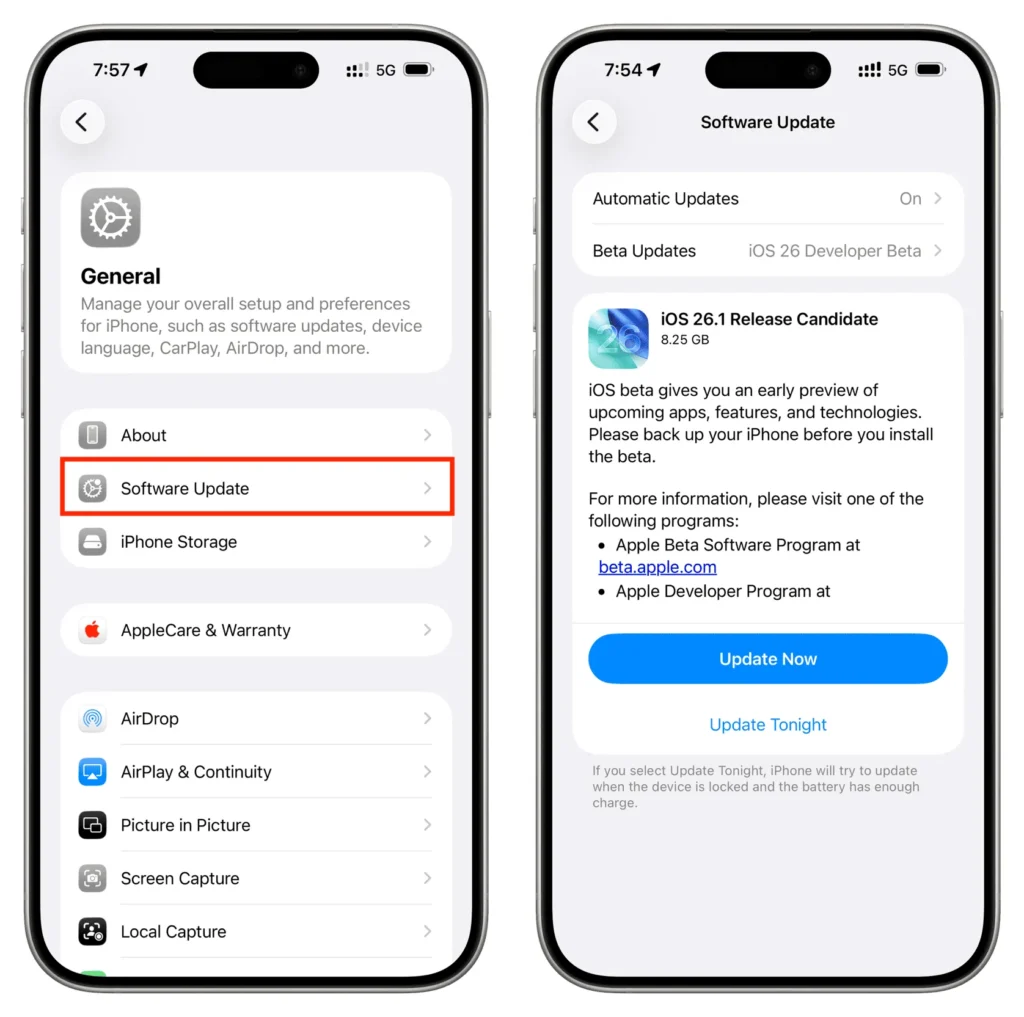
12 Settings to Make Your iPhone Fast Again After iOS 26
These are the exact steps, in the order that gives the fastest results. You don’t need to do all 12 at once — even the first 4 or 5 usually make a noticeable difference.
1. Let Background Indexing Finish
Right after updating, keep your iPhone connected to Wi-Fi and charging overnight. This lets Spotlight Search, Photos, and system indexing complete faster, without competing with your daily usage. Most iPhone freezing after iOS 26 complaints resolve simply after one full charging cycle.
How: Settings → connect to Wi-Fi → plug in charger → leave overnight.
2. Free Up iPhone Storage
Low storage is one of the biggest hidden reasons for lag. iOS needs breathing room to manage cache and temporary files.
- Go to Settings → General → iPhone Storage
- Review the “Recommendations” section
- Delete unused apps you haven’t opened in months
- Offload large apps instead of deleting their data
- Clear Safari website data (Settings → Safari → Clear History and Website Data)
- Remove old downloads, duplicate photos, and unused voice memos
Aim for at least 10–15% free storage for smooth day-to-day performance.
3. Disable Background App Refresh for Unused Apps
Apps refreshing content you never check are silently draining battery and RAM.
How: Settings → General → Background App Refresh → turn it off for apps you rarely use, or set it to Wi-Fi only.
4. Turn On Reduce Motion
This single setting often gives the most noticeable “instant” improvement in perceived speed, especially on iPhones a few years old.
How: Settings → Accessibility → Motion → turn on Reduce Motion. This removes heavy zoom and parallax animations, making transitions feel snappier.
5. Limit Location Services
Apps constantly checking your location in the background use both battery and processing power.
How: Settings → Privacy & Security → Location Services → set apps to “While Using the App” instead of “Always,” and turn off location access entirely for apps that don’t need it.
6. Optimize Siri Suggestions
Siri constantly learns your habits in the background to suggest apps and shortcuts. Reducing this load can free up resources.
How: Settings → Siri & Search → turn off “Show Siri Suggestions” and “Learn from this App” for apps where you don’t need predictive suggestions.
7. Disable Unnecessary Widgets
Widgets on your Home Screen and Lock Screen refresh data constantly in the background, even when you’re not looking at them.
How: Long-press your Home Screen → remove widgets you don’t check daily. Fewer widgets means less background refreshing.
8. Manage Notifications
Excess notification syncing across dozens of apps adds up, especially right after an update when everything re-syncs at once.
How: Settings → Notifications → turn off notifications for apps that don’t need real-time alerts (shopping apps, games, promotional apps).
9. Use Low Power Mode Strategically
Low Power Mode doesn’t just save battery — it also reduces background activity, which can smooth out performance during the post-update adjustment period.
How: Settings → Battery → Low Power Mode → turn on, especially during the first day after updating.
10. Check and Improve Battery Health
If your battery health has dropped significantly, this directly affects speed due to power management.
How: Settings → Battery → Battery Health & Charging → check the percentage. If it’s below 80% and your phone feels consistently slow (not just after the update), a battery replacement — refurbished or new — can restore full performance.
11. Clear App Cache the Right Way
iOS doesn’t give one “clear all cache” button, but offloading apps clears their cache while keeping your documents and data.
How: Settings → General → iPhone Storage → tap a heavy app (like Instagram or Chrome) → Offload App. Reinstall it later — your data stays, but stored cache resets.
12. Reset All Settings Safely (Last Resort)
If the phone still lags after trying everything above, resetting all settings (not erasing content) can fix corrupted preference files without deleting a single photo, app, or document.
How: Settings → General → Transfer or Reset iPhone → Reset → Reset All Settings. This resets Wi-Fi passwords, wallpaper, and layout preferences only — your data is completely safe.
Should I reset my iPhone after updating? Only if the lag continues after trying the settings above for 2–3 days. A full “Reset All Settings” is safe and doesn’t erase data, but a full factory reset should be your very last option.
Also Read – Where to Buy a Certified Refurbished iPhone in India? (2026 Guide)
Quick Comparison: What Each Fix Solves
| Fix | Best For |
| Let indexing finish | New lag right after updating |
| Free up storage | Freezing, app crashes |
| Disable Background App Refresh | Battery drain, RAM overload |
| Reduce Motion | Laggy animations, stutter |
| Limit Location Services | Background battery drain |
| Optimize Siri Suggestions | Overall system load |
| Disable widgets | Home Screen lag |
| Manage notifications | Constant background syncing |
| Low Power Mode | Overheating, fast battery drain |
| Check Battery Health | Old iPhone, sudden slowdowns |
| Clear app cache | Specific app slowness |
| Reset all settings | Lag that won’t go away |
Real-World Example: What Users Are Reporting
Across Reddit threads, Apple community forums, and social media, a common pattern shows up after every major iOS release: users report slower app launches and battery drain in the first 48 hours, followed by normal performance once background indexing completes. Users with iPhones older than 3–4 years, or with battery health under 80%, report the slowdown lasting noticeably longer — which lines up exactly with Apple’s own documented power management behavior for aging batteries.
This is why battery health is one of the most overlooked reasons behind a “slow iPhone” complaint. It’s not always the software — sometimes it’s the hardware quietly asking for help.
When Settings Alone Aren’t Enough
If you’ve tried all 12 fixes and your iPhone is still slow, freezing, or draining battery fast, the issue is likely hardware-related — usually an aging battery or a device that’s simply reached the end of comfortable performance for its age.
At this point, you have two honest choices:
- Get the battery replaced, if everything else on the phone works fine.
- Upgrade to a certified refurbished iPhone, which gives you a newer chip, better battery health, and full iOS 26 compatibility — at a fraction of the price of a new iPhone.
This is exactly where Refone comes in.
Why Choose Refone for Your Next iPhone Upgrade
If your current iPhone is struggling to keep up with iOS 26 because of its age or battery health, buying new isn’t your only option.
Refone offers certified, quality-checked refurbished iPhones that are:
- Fully tested across performance, battery health, and camera function
- Verified for iOS 26 compatibility before listing
- Backed by warranty, so you’re never buying blind
- Priced significantly lower than a brand-new iPhone, without compromising on real-world speed or camera quality
For Indian buyers who want the latest iOS experience without the flagship price tag, a refurbished iPhone from Refone is a practical, budget-smart decision — especially if your current device’s battery health is the real reason behind the slowdown, not the software.
👉 Explore certified refurbished iPhones on Refone and get a device that’s ready for iOS 26 — fast, tested, and trustworthy.

FAQs: iPhone Slow After iOS 26 Update
Q1. Why did my iPhone become slow after iOS 26?
It’s usually due to background system indexing, low storage, or reduced battery health causing temporary performance throttling. This typically settles down within 24–48 hours.
Q2. Does iOS 26 reduce iPhone performance permanently?
No. For most users, iOS 26 does not permanently reduce performance. Any slowdown is usually related to background processing right after the update, low storage, or an aging battery — not the update itself.
Q3. How can I speed up my iPhone after updating?
Free up storage, disable Background App Refresh for unused apps, turn on Reduce Motion, and let the phone finish indexing overnight while charging. These steps together resolve most post-update lag.
Q4. Which settings should I change after installing iOS 26?
Focus on Background App Refresh, Reduce Motion, Location Services, Siri Suggestions, and Battery settings — these five have the biggest impact on speed.
Q5. Is iPhone lag normal after a major update?
Yes, a short period of lag (24–48 hours) is completely normal after any major iOS update, including iOS 26.
Q6. Does low storage make iOS 26 slower?
Yes. iOS needs free storage space to manage cache, temporary files, and background processes. Less than 1–2 GB free space is a common cause of lag and freezing.
Q7. Should I reset my iPhone after updating?
Only if the slowdown continues beyond 3–4 days despite trying the settings fixes. “Reset All Settings” is safe and doesn’t delete your data.
Q8. Does battery health affect iPhone speed?
Yes, significantly. If battery health drops below 80%, iOS may apply performance management to prevent unexpected shutdowns, which can make the phone feel slower.
Q9. What is the fastest way to improve iPhone performance?
Turning on Reduce Motion and disabling Background App Refresh for unused apps usually give the fastest, most noticeable improvement.
Q10. Can I fix iPhone lag without resetting it?
Yes. All 12 fixes in this guide work without resetting or erasing your iPhone. A full reset should only be a last resort.
Q11. iOS 26 update ke baad iPhone slow kyu ho gaya hai?
Update ke baad system background mein indexing aur cache rebuild karta hai, jisse phone thoda slow feel hota hai. Yeh normally 24-48 ghante mein theek ho jata hai.
Q12. iPhone ko fast kaise banaye update ke baad?
Storage free karo, Background App Refresh band karo, Reduce Motion on karo, aur phone ko raat bhar charging pe Wi-Fi ke saath chhod do. Yeh sabse effective steps hain.
Q13. Kya iOS 26 update se iPhone permanently slow ho jata hai?
Nahi, zyada tar cases mein yeh temporary hota hai. Agar phone purana hai ya battery health kam hai, tabhi lag zyada der tak rehta hai.
Q14. iPhone hang ya freeze kyu ho raha hai update ke baad?
Low storage aur background processing ki wajah se aisa hota hai. Storage clean karne se yeh problem zyada tar theek ho jati hai.
Q15. Kya purane iPhone ko update ke baad naya lene ki zarurat hai?
Zaroori nahi. Agar battery health kam hai ya phone bahut purana hai, toh ek certified refurbished iPhone lena ek smart aur budget-friendly option hai — bina naya flagship phone kharide.
Conclusion: Your iPhone Isn’t Broken — It Just Needs the Right Settings
A slow iPhone after a major update feels frustrating, but in almost every case, it’s fixable. Your phone isn’t failing — it’s simply catching up: indexing files, adjusting battery behavior, and settling into the new software.
Start with the easy wins — free up storage, turn on Reduce Motion, and manage Background App Refresh. Give your iPhone a full charging cycle on Wi-Fi. In most cases, you’ll notice the difference within a day.
But if your iPhone continues to lag because of an aging battery or outdated hardware, don’t force it to keep up. A certified refurbished iPhone from Refone gives you full iOS 26 performance, verified battery health, and real value for money — without the new-iPhone price tag.
Your iPhone deserves to run smoothly. And if it’s time for an upgrade, Refone is here to help you make that switch with confidence — tested, verified, and trusted.
Leave a Reply
Your email address will not be published. Required fields are marked *